

Remote work is no longer an experiment—it’s the default operating model for modern businesses. Yet, many organizations struggle with fragmented communication, declining productivity, and lack of visibility across distributed teams.
The difference between high-performing remote teams and struggling ones isn’t talent—it’s tooling.
The right remote working tools enable organizations to:
- Streamline communication across time zones
- Improve productivity and accountability
- Automate workflows and reduce manual effort
- Maintain visibility across projects and teams
Without a well-structured remote work tech stack, teams face inefficiencies that directly impact output, employee experience, and operational costs.
In this guide, you’ll find:
- Practical guidance on choosing the right remote work solutions
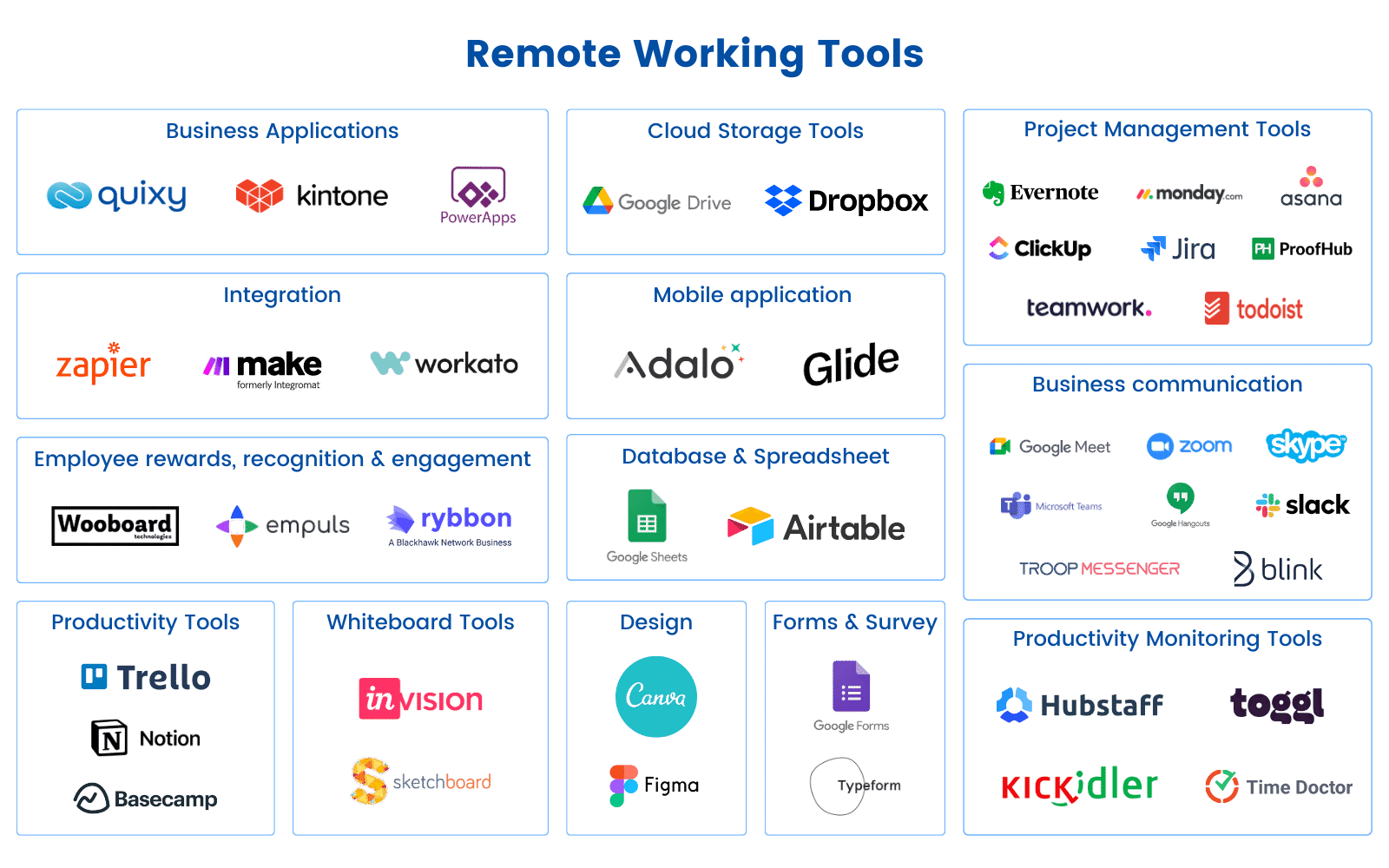
- A curated list of the best remote work tools
- Categorized tools based on real business use cases
- A comparison table for faster decision-making
Also Read: 6 Tips to successfully manage your Remote Workforce for Better Productivity
What Are Remote Work Tools?
Remote work tools are software platforms that enable teams to collaborate, communicate, manage work, and track performance without being physically present in the same location.
They typically fall into five categories:
- Communication tools
- Project and task management tools
- Collaboration and documentation tools
- Automation and workflow tools
- Productivity and monitoring tools
Together, they form the backbone of a remote work ecosystem.
Why Businesses Need Remote Work Tools in 2026
Remote and hybrid work have introduced new operational challenges:
- Distributed teams across time zones
- Increased reliance on digital communication
- Difficulty tracking productivity and outcomes
- Fragmented workflows across multiple tools
According to industry research:
- Remote work can improve productivity by up to 13 percent
- Employees save an average of 40 minutes daily without commuting
- Most organizations are adopting hybrid work models as standard
Without the right tools, these benefits are lost.

How to Choose the Right Remote Work Tools
Before selecting tools, define your operational needs.
| Decision Factor | What to Evaluate | Why It Matters |
|---|---|---|
| Team Structure | Remote, hybrid, deskless | Impacts tool requirements |
| Primary Use Case | Communication, project management, automation | Avoids overlap |
| Integration | Compatibility with existing tools | Prevents silos |
| Scalability | Ability to grow with business | Long-term ROI |
| Ease of Use | Adoption across teams | Drives success |
A strong tool strategy focuses on alignment, not accumulation.
Quick Comparison Table
| Tool | Category | Best For | Free Plan | Starting Price |
|---|---|---|---|---|
| Quixy | Workflow / No-code | Custom apps and process automation | Yes | Custom |
| Slack | Communication | Team messaging, channel-based orgs | Yes (limited) | $7.25/user/mo |
| Microsoft Teams | Communication | Microsoft 365 organizations | Yes | $6/user/mo |
| Zoom | Video | Reliable meetings and webinars | Yes (40-min limit) | $14.16/user/mo |
| Google Meet | Video | Google Workspace teams | Yes | Included in Workspace |
| Asana | Project Management | Structured project and task tracking | Yes (10 users) | $10.99/user/mo |
| ClickUp | Project Management | All-in-one consolidation | Yes | $7/user/mo |
| Monday.com | Project Management | Visual, dashboard-driven tracking | No | $9/user/mo |
| Jira | Project Management | Engineering and agile teams | Yes (10 users) | $7.75/user/mo |
| Notion | Docs / Knowledge | Team wikis, databases, notes | Yes | $10/user/mo |
| Zapier | Automation | Connecting apps without code | Yes (limited) | $19.99/mo |
| Make | Automation | Complex multi-step automations | Yes | $9/mo |
| Hubstaff | Monitoring | Time tracking, remote accountability | No | $4.99/user/mo |
| Toggl | Time Tracking | Billable hour tracking, agencies | Yes (5 users) | $9/user/mo |
| Google Drive | Storage | File storage and real-time collaboration | Yes (15GB) | $6/user/mo |
| Figma | Design | UI/UX collaboration and prototyping | Yes (3 projects) | $12/user/mo |
| Canva | Design | Non-designer visual content | Yes | $15/user/mo |
Best Remote Working Tools in 2026
1. Quixy — Best for Custom Workflow Automation
What it does: Quixy is a no-code low-code platform that lets teams build custom business applications and automate workflows using a drag-and-drop interface — no developers required. With Caddie and advanced agentic AI capabilities, Quixy brings together real-time analytics, intelligent automation, and AI agents that can be trained to execute business tasks autonomously.
Best for: Operations, HR, and finance teams that have processes too specific to fit neatly into off-the-shelf tools. If your team is currently managing workflows through email chains, WhatsApp groups, or manual spreadsheets, Quixy is the fastest path to replacing that with a proper system.
Key features:
- Visual drag-and-drop app builder with 150+ pre-built templates
- End-to-end process automation across HR, finance, IT, and operations
- API and webhook integrations with existing tools
- Caddie AI agent for interactive data analytics, real-time insights, and natural language-based reporting
- AI-powered anomaly detection to identify irregularities and risks in real time
- Agentic AI capabilities to build and train AI agents that can automate tasks, enforce business rules, and make decisions autonomously
- Role-based access control and enterprise-grade security
- Mobile-ready apps deployable on Android and iOS without a separate build
Pricing: Free plan available. Paid plans are custom-quoted.
Honest limitation: Quixy isn’t the right tool for teams that need something running out of the box in under an hour. The real value comes after you’ve invested time in mapping and configuring your process properly.
Verdict: Most remote teams adapt their work to fit the tools available. Quixy flips that model — it lets you build tools that fit how your team actually works. For workflows that don’t map cleanly to Asana or Monday.com, this is where Quixy earns its place in the stack.
The global no-code low-code platform market is projected to reach $187 billion by 2030.
2. Slack — Best for Team Messaging
What it does: Slack is an enterprise messaging platform that organizes conversations into channels, supports direct messaging, and integrates with hundreds of third-party tools.
Best for: Teams of 10 to 1,000+ that want a searchable, organized replacement for email for internal communication.
Key features:
- Channel-based structure organized by project, team, or topic
- Slack AI for summarizing threads and searching conversations
- 2,600+ app integrations including Asana, Jira, Google Drive, and Zoom
- Huddles for lightweight audio/video without scheduling a meeting
- Workflow Builder for lightweight in-app automations
Pricing: Free plan with 90-day message history. Pro from $7.25/user/mo.
Honest limitation: Notification overload is real without deliberate channel hygiene. The 90-day history limit on the free plan creates friction when teams need to search older decisions.
Verdict: Slack is the default choice for remote teams not tied to the Microsoft ecosystem. The free plan is functional for early-stage teams; upgrade when message history and integrations become operationally important.
3. Microsoft Teams — Best for Microsoft 365 Organizations
What it does: Microsoft Teams is a unified communication and collaboration hub built into Microsoft 365, combining chat, video, file sharing, and app integration.
Best for: Organizations already using Outlook, SharePoint, OneDrive, and Office apps who want a single hub for everything — without adding another tool to the stack.
Key features:
- Deep Microsoft 365 integration — co-edit Word documents live during a meeting
- Copilot AI for meeting summaries, chat drafts, and action items (paid)
- Enterprise-grade compliance and security out of the box
- Teams Phone for replacing traditional phone systems
- Supports up to 1,000 participants in town halls
Pricing: Free plan available. Microsoft 365 Business Basic from $6/user/mo includes Teams.
Honest limitation: The interface is more complex than Slack, and the app feels heavy on older hardware. Teams built outside the Microsoft ecosystem often find onboarding harder than expected.
🔀 Slack vs. Microsoft Teams — Which Should You Choose?
| Factor | Slack | Microsoft Teams |
|---|---|---|
| Best ecosystem fit | Google Workspace / mixed stack | Microsoft 365 |
| Interface | Clean, fast, channel-focused | Feature-rich, heavier |
| AI features | Slack AI (thread summaries) | Copilot (deeper, requires paid M365) |
| Video calls | Via Zoom or Huddles | Native, high quality |
| Free plan | Yes — limited history | Yes — functional |
| Best team size | Startups to enterprise | Mid-market to enterprise |
Verdict: If your team lives in Google Workspace, choose Slack. If you’re a Microsoft 365 organization, Teams is the practical choice — and it’s already included in your plan.
4. Zoom — Best for Video Meetings and Webinars
What it does: Zoom, A video conferencing platform that offersstable meetings, webinars, screen sharing, breakout rooms, and recordings.
Best for: Any remote team that holds regular client calls, all-hands meetings, or webinar-style sessions where reliability and scale matter.
Key features:
- Reliable 1080p video across varying network conditions
- AI Companion for meeting summaries and action item capture
- Webinar mode for up to 500 participants (paid)
- Breakout rooms for workshops and team sessions
- Background noise suppression and virtual backgrounds
Pricing: Free with 40-minute group call limit. Pro from $14.16/user/mo.
Honest limitation: The 40-minute free tier limit is genuinely disruptive for teams. Cost compounds quickly for large organizations compared to Teams or Meet.
5. Google Meet — Best for Google Workspace Teams
What it does: Google meet is a browser-based video conferencing built into Google Workspace — no app download required for participants.
Best for: Google Workspace teams that want simple, reliable video meetings without adding cost or a separate tool.
Key features:
- No download required for guests — join from any browser
- Live captions in 70+ languages
- Integrated with Google Calendar for one-click meeting joins
- Noise cancellation and auto-adjusting low-light mode
Pricing: Free for Google accounts. Included in all Workspace plans from $6/user/mo.
Honest limitation: Lacks advanced features like flexible breakout rooms, webinar mode, and the third-party integration depth that Zoom offers.
🔀 Zoom vs. Google Meet — Which Should You Choose?
| Factor | Zoom | Google Meet |
|---|---|---|
| Ecosystem fit | Any stack | Google Workspace |
| Free plan | 40-min group call limit | 60-min group calls |
| Webinar capability | Yes (paid) | Limited |
| Guest experience | Often requires app download | Browser-based, no download |
| Best use case | Client calls, webinars, all-hands | Internal team meetings |
Verdict: For internal Google Workspace meetings, Meet is easier and costs nothing extra. For client-facing calls, webinars, or large all-hands with external participants, Zoom’s reliability and feature depth justify the cost.
6. Asana — Best for Structured Project Teams
What it does: Asana is a project and task management platform that lets teams organize work into projects, assign ownership, set deadlines, and automate recurring processes.
Best for: Marketing, operations, and cross-functional teams managing multiple concurrent projects with clear deliverables and defined workflows.
Key features:
- Multiple views: list, board, timeline (Gantt), calendar, and workload
- Custom rules for automating task assignment and status changes
- 50+ project templates across marketing, HR, product, and IT
- Asana Intelligence for workload balancing and goal tracking
- Native integrations with Slack, Zoom, Google Drive, Salesforce, and 200+ tools
Pricing: Free up to 10 users. Starter from $10.99/user/mo.
Honest limitation: Can feel over-engineered for very small teams or simple projects. Timeline and workload views are paywalled behind the Starter plan.
7. ClickUp — Best for All-in-One Consolidation
What it does: ClickUp is a productivity platform combining tasks, docs, goals, whiteboards, and dashboards in a single customizable workspace.
Best for: Teams that want to reduce tool count by replacing separate PM, docs, and chat apps with one platform — and are willing to invest in the setup to get there.
Key features:
- 15+ views including List, Board, Gantt, Mind Map, and Workload
- ClickUp Brain (AI) for task creation, summaries, and automation
- Built-in Docs replacing the need for a separate wiki tool
- Custom fields, statuses, and automations per space
- Generous free plan with unlimited tasks and members
Pricing: Free plan available. Unlimited from $7/user/mo.
Honest limitation: The feature volume creates a significant learning curve. Most teams feel overwhelmed before they feel productive — budget 2–3 weeks for proper onboarding.
8. Monday.com — Best for Visual Workflow Tracking
What it does: Monday.com is a visual work OS that lets teams build custom workflows, track projects, and view portfolio-level data through dashboards and color-coded boards.
Best for: Sales teams, agency teams, and operations managers who prioritize visual clarity and leadership-level dashboard visibility over deep task granularity.
Key features:
- Highly visual, color-coded boards with drag-and-drop interaction
- 200+ integrations including Salesforce, HubSpot, and Slack
- Monday AI for automating updates and generating status summaries
- Portfolio-level dashboards for cross-project visibility
- Built-in time tracking and workload management
Pricing: No free plan (14-day trial only). Basic from $9/user/mo with a 3-user minimum.
Honest limitation: The 3-user minimum and no free plan make it harder to evaluate properly before committing. Not the right fit for individual contributors or very small teams.
🔀 Asana vs. ClickUp vs. Monday.com
| Factor | Asana | ClickUp | Monday.com |
|---|---|---|---|
| Learning curve | Low–Medium | High | Low–Medium |
| Best for | Structured project teams | All-in-one consolidators | Visual / sales teams |
| Free plan | Yes (10 users) | Yes (unlimited tasks) | No |
| Automation depth | Strong | Very strong | Strong |
| Starting price | $10.99/user/mo | $7/user/mo | $9/user/mo |
Verdict: Choose Asana for structured teams that want clarity without complexity. Choose ClickUp to consolidate tools and don’t mind a learning investment. Choose Monday if leadership-level visual dashboards are the primary requirement.
9. Jira — Best for Engineering and Agile Teams
What it does: Jira is a project tracking tool built specifically for software development teams, supporting agile methodologies including scrum and kanban.
Best for: Engineering and product teams running sprint-based development, bug tracking, and release planning. Not recommended for non-engineering teams.
Key features:
- Native scrum and kanban boards with sprint management
- Backlog management with epic, story, and subtask hierarchy
- Deep Atlassian integration — connects natively with Confluence and Bitbucket
- Advanced reporting: velocity charts, burndown charts, cumulative flow diagrams
- Automation rules for routine dev workflow actions
Pricing: Free for up to 10 users. Standard from $7.75/user/mo.
Honest limitation: Genuinely complex to configure without a dedicated Jira administrator. Using Jira for non-engineering work is almost always the wrong call — Asana or ClickUp serve those use cases better.
10. Notion — Best for Team Knowledge Management
What it does: Notion is an all-in-one workspace combining notes, wikis, databases, and lightweight project tracking in a flexible block-based editor.
Best for: Teams that want a single source of truth for documentation, SOPs, onboarding guides, and meeting notes — accessible by everyone, searchable, and easy to maintain.
Key features:
- Flexible page structure combining text, tables, databases, and calendars in one view
- Notion AI for drafting, summarizing, and searching across your workspace
- Shared team wikis with granular permission controls
- Database views: table, board, calendar, gallery, list, and timeline
- Templates for OKR tracking, onboarding, project wikis, and more
Pricing: Free plan available. Plus from $10/user/mo.
Honest limitation: Notion’s flexibility is also its risk. Without team-wide conventions, it becomes a second messy drive. Someone needs to own the structure.
11. Zapier — Best for Connecting Apps Without Code
What it does: Zapier is a no-code automation platform that connects 6,000+ web applications and automates data transfer and workflow triggers between them.
Best for: Teams that want to eliminate repetitive manual tasks between tools they already use — without writing code or involving a developer.
Key features:
- 6,000+ app integrations — the widest library available
- Multi-step Zaps for complex automation chains
- Pre-built templates for common combinations (Slack + Asana, Gmail + Sheets, etc.)
- Tables and Interfaces for lightweight data management alongside automations
Pricing: Free plan (100 tasks/mo). Starter from $19.99/mo.
Honest limitation: Task-based pricing gets expensive as automation volume grows. Complex multi-step Zaps can break when connected apps update their APIs.
12. Make — Best for Complex Automations
What it does: Make is a visual workflow automation platform with more advanced logic, data transformation, and error handling than Zapier.
Best for: Technical operations teams or power users who need sophisticated automations involving conditional branching, data manipulation, and detailed execution logging.
Key features:
- Visual scenario builder with branching and filtering logic
- Advanced data transformation between apps
- Detailed execution logs and built-in error management
- Significantly more affordable than Zapier at higher task volumes
Pricing: Free plan (1,000 operations/mo). Core from $9/mo.
Honest limitation: Steeper learning curve than Zapier. Not the right starting point for non-technical users building their first automation.
13. Hubstaff — Best for Remote Team Time Tracking
What it does: Hubstaff is a time tracking and productivity monitoring platform with optional screenshot capture, activity monitoring, and GPS tracking for field teams.
Best for: Remote teams managing contractors, hourly workers, or field staff who need verifiable time data for payroll and billing.
Key features:
- Automatic time tracking via desktop and mobile apps
- Optional screenshot monitoring with configurable frequency
- Payroll integration and invoice generation
- GPS tracking for deskless and field workers
- App and URL usage reports per employee
Pricing: From $4.99/user/mo (2-user minimum).
Honest limitation: Screenshot monitoring can damage team trust if not transparently communicated from the start. Hubstaff measures activity, not outcomes — a distinction managers need to internalize before deploying it.
14. Toggl Track — Best for Billable Hour Tracking
What it does: Toggl is a simple, one-click time tracking tool with project and client tagging, visual reporting, and team dashboards.
Best for: Agencies, consultancies, and freelance-heavy teams that track billable hours per project and client.
Key features:
- One-click start/stop timer with project and client tagging
- Visual reports for time by project, client, and team member
- Integrates with Asana, Jira, Basecamp, and 100+ tools via browser extension
- Separate workspaces for different teams or clients
Pricing: Free for up to 5 users. Starter from $9/user/mo.
Honest limitation: Tracking is manual — it depends on users remembering to start and stop timers. Not suitable for environments where passive, automatic time capture is required.
15. Google Drive — Best for File Storage and Collaboration
What it does: Google drive is a cloud storage and real-time collaboration platform integrated with Google Docs, Sheets, Slides, and Forms.
Best for: Any team using Google Workspace — the native integration with Docs and Sheets makes it the default collaborative file system.
Key features:
- Real-time co-editing in Docs, Sheets, and Slides with version history
- Shared drives for team-wide file management with permission controls
- Gemini AI for searching and summarizing Drive content
- 15GB free storage per Google account
Pricing: 15GB free. Google Workspace from $6/user/mo includes pooled team storage.
Honest limitation: Google ecosystem lock-in. Version control for non-Google files (Word, Excel) imported into Drive is less reliable than native Google formats.
16. Figma — Best for Design Collaboration
What it does: Figma is a cloud-based UI/UX design and prototyping tool that enables real-time collaboration between designers, developers, and stakeholders.
Best for: Product and design teams building digital products who need a shared design environment that non-designers can access to view, comment, and inspect — without needing design skills themselves.
Key features:
- Real-time multi-user design collaboration on the same file
- Prototyping with interactive hotspots, animations, and GIF support
- FigJam whiteboard for brainstorming and remote workshops
- Dev Mode for clean design-to-engineering handoff
- Shared component libraries and design systems
Pricing: Free plan (3 projects, unlimited collaborators). Professional from $12/user/mo.
Honest limitation: Learning curve for non-designers is real. The 3-project limit on the free plan forces early upgrades for active product teams.
17. Canva — Best for Non-Designer Visual Content
What it does: Canva is a drag-and-drop graphic design platform with thousands of templates for presentations, social graphics, documents, reports, and videos.
Best for: Marketing, HR, and operations team members who need professional-looking visual content without design skills or a designer’s availability.
Key features:
- 250,000+ templates across presentations, social media, documents, and video
- Brand Kit for consistent colors, fonts, and logos across all outputs
- Magic Studio AI for image generation, background removal, and copy suggestions
- Real-time team collaboration and content sharing
- Canva Presentations as a standalone PowerPoint alternative
Pricing: Free plan available. Pro from $15/user/mo.
Honest limitation: Not a substitute for professional UI/UX or brand design work. Template familiarity across users can lead to visually homogeneous output at scale.
How to Choose the Right Remote Work Tools
Choosing the right tools requires a strategic approach, not just feature comparison.
| Evaluation Area | What to Consider | Why It Matters |
|---|---|---|
| Team Needs | Communication, productivity, automation | Aligns tools with real use cases |
| Integration | Compatibility with existing tools | Prevents data silos |
| Scalability | Team growth and complexity | Supports long-term use |
| Ease of Use | Adoption across teams | Ensures ROI |
| Security | Data protection and compliance | Critical for enterprise |
Key takeaway:
The best remote work tools are not the most popular—they are the ones that fit your workflows.
The Modern Enterprise Remote Work Tech Stack (2026)
Enterprise remote work has a different set of requirements than what works for a 50-person team. At scale, the priorities shift: integration and governance matter more than features, security and compliance are non-negotiable, and every tool added to the stack needs to be centrally manageable — not just useful in isolation.
The stack below reflects how high-performing enterprise organizations are structuring their remote work infrastructure in 2026. It isn’t the only configuration that works, but it represents a defensible, well-integrated foundation across the functions that matter most.
The Stack
| Function | Recommended Tool | Why It Earns Its Place |
|---|---|---|
| Communication | Microsoft Teams | Native M365 integration, enterprise compliance, Copilot AI built in |
| Video & Webinars | Zoom (Enterprise) | Industry-standard reliability, compliance recording, 1,000-participant webinars |
| Project Management (Engineering) | Jira | Sprint management, backlog, native Atlassian ecosystem integration |
| Project Management (Operations & Business Teams) | Asana or Monday.com | Cross-functional visibility, workflow automation, executive dashboards |
| Process & Workflow Automation | Quixy | No-code BPM platform for custom enterprise workflows, departmental apps, and process automation without development overhead |
| Documentation & Knowledge | Confluence + SharePoint | Searchable, permissioned knowledge base at enterprise scale |
| File Storage | SharePoint + OneDrive | Governed, compliant, native M365 integration |
| App & System Integration | Workato | IT-governed automation connecting ERP, HRIS, CRM, and internal tools |
| Time & Workforce Tracking | Hubstaff (Enterprise) | Distributed workforce accountability, payroll integration, GPS for field teams |
| Design & Prototyping | Figma (Organization) | Shared design systems, Dev Mode for engineering handoff, enterprise SSO |
How These Tools Work Together
The strength of this stack isn’t any individual tool — it’s how they connect.
Microsoft Teams sits at the center of daily communication. Integrated with SharePoint for file access and Outlook for scheduling, it eliminates the need for separate apps for messaging, calls, and document access. Zoom handles high-stakes external meetings and large-format webinars where Teams falls short on scale or guest experience.
Jira manages engineering workflows — sprints, bug tracking, release planning — and connects natively to Confluence for technical documentation and decision records. Business and operations teams run on Asana or Monday.com, giving them the visual dashboards and cross-team visibility they need without the complexity of a developer-focused tool.
Quixy fills the gap that every enterprise encounters: the backlog of internal tool requests — custom approval workflows, compliance checklists, field inspection apps, HR process automation — that engineering never has bandwidth to build. As a no-code BPM platform, Quixy lets operations and department heads build and deploy those workflows themselves, governed under enterprise access controls, without adding to the development queue.
Workato governs the integrations between these systems — ensuring that data moves reliably and auditably between your ERP, HRIS, CRM, and the tools above, without creating ungoverned point-to-point connections that become technical debt.
Hubstaff provides workforce visibility for distributed and contractor-heavy teams, with time data feeding directly into payroll and project cost tracking.
Figma serves product and design teams with a shared, cloud-based environment that developers, designers, and non-technical stakeholders can all access — removing the friction of file-based design handoffs.
What This Stack Gets Right
It separates tools by team type, not by seniority. Engineering on Jira, business teams on Asana or Monday, process-heavy departments on Quixy — each team uses what fits their workflow, while the organization maintains a single source of truth for communication, documentation, and file storage.
It is built to be governed. Every tool in this stack supports SSO, role-based access control, and audit logging. That isn’t an afterthought — at enterprise scale, a tool your IT team can’t govern is a liability, not an asset.
It consolidates without forcing compromise. Rather than pushing every team onto one PM platform and watching adoption suffer, this stack makes deliberate choices: the right tool per use case, connected through Workato, unified under Teams and SharePoint for communication and storage.
Conclusion
Remote work success is not about adopting more tools—it’s about adopting the right ones.
Organizations that invest in a structured remote work tech stack gain:
- Higher productivity
- Better visibility
- Improved employee experience
- Lower operational friction
As remote and hybrid work continue to evolve, tools will play an even bigger role in defining how effectively teams operate.
The key is to move from disconnected tools to a unified, well-integrated ecosystem.
Not finding remote work tools that truly fit your workflows?
Build your own.
With Quixy, you can create custom remote work solutions—from workflow automation to team management apps—without writing a single line of code.
Book a demo and design a remote work system tailored to your business.
Frequently Asked Questions (FAQs)
What are remote working tools?
Remote working tools are cloud-based software platforms that enable individuals and teams to communicate, manage projects, collaborate on documents, automate workflows, and track productivity — without being in the same physical location. They typically fall into five categories: communication, project management, collaboration and documentation, automation, and productivity monitoring.
What equipment do remote workers need?
Remote workers typically need essential equipment such as a reliable computer or laptop, a stable internet connection, a headset or headphones with a microphone for clear communication, a webcam for video conferencing, and any specific tools or software required for their job, such as design software or project management tools.
What technology is used for remote working?
Various technologies are used for remote working, including video conferencing tools like Zoom or Microsoft Teams for virtual meetings, cloud storage platforms like Google Drive or Dropbox for file sharing and collaboration, project management tools like Asana or Trello for task management, and no-code platforms like Quixy that allows you to create apps without writing code.
Which tools are most useful to remote employees and coworkers?
The most useful tools for remote employees and coworkers may vary based on their specific needs and job requirements. However, some commonly valuable tools include:
1. Video conferencing platforms for virtual meetings and collaboration.
2. Communication tools for instant messaging and team collaboration.
3. Project management software for task organization and tracking progress.
4. Cloud storage platforms for secure file sharing and document collaboration.
Related Post



Please login to comment
0 Comments
Oldest
Recent Posts




- Download the App